A softer, matte look for your Mac screen.
Add paper texture and gentle light to individual windows or your whole screen. Fine-tune the look right from your menu bar.

US $2.99 on the Mac App Store. Regional prices vary. Requires macOS 13 or later.
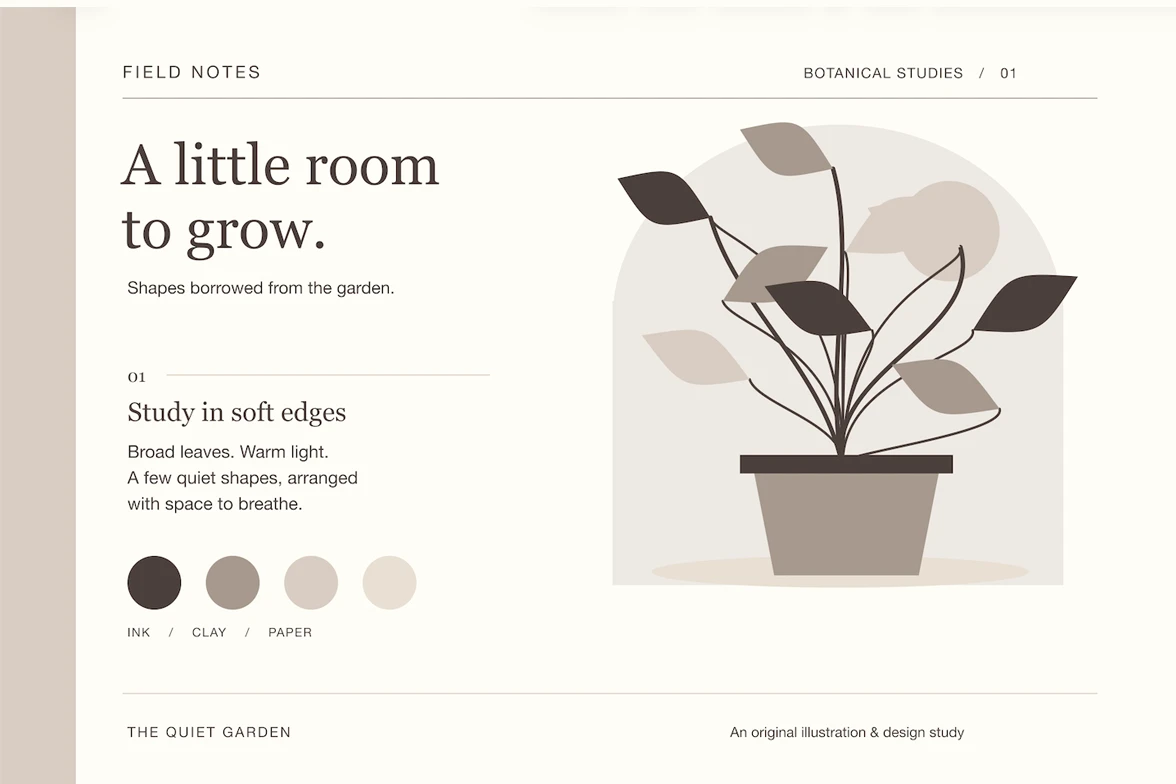
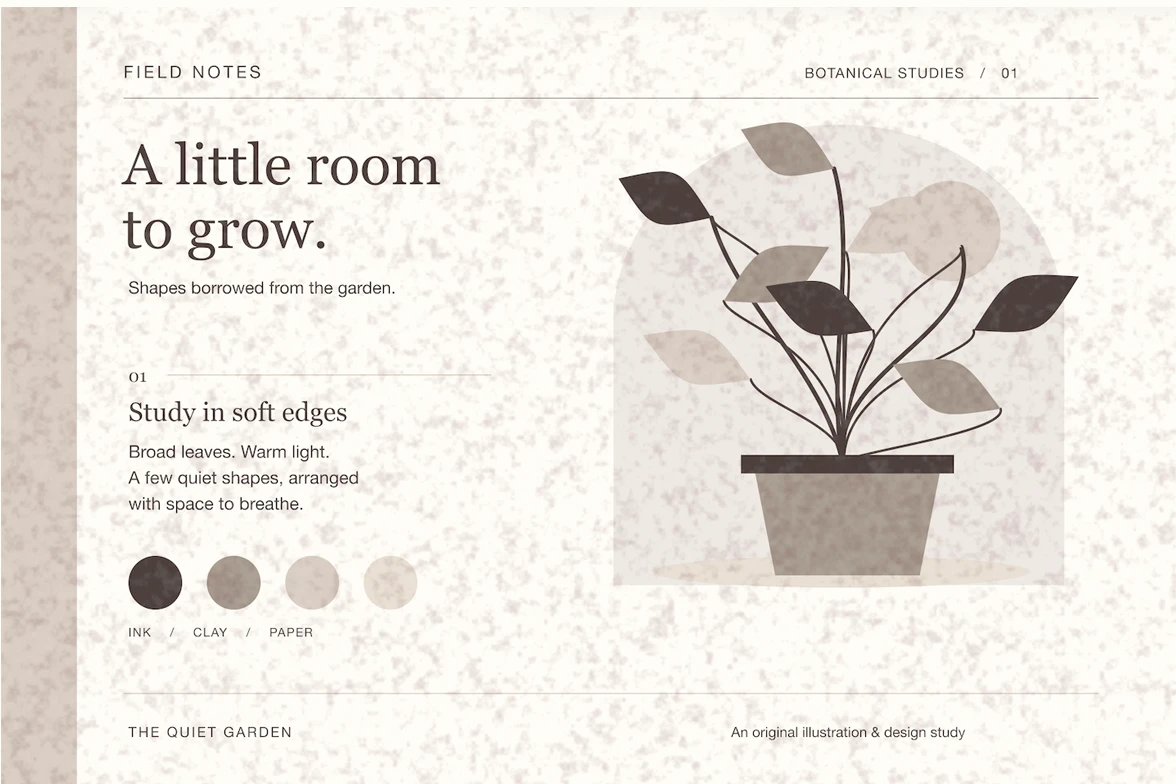
- One window or the whole screen
- Choose an individual window, or cover your display.
- Keep working underneath
- Clicks, scrolling and typing pass through the overlay.
- Preferences stay on your Mac
- No account, data collection or app network connections.
Your windows. Your look.
Give individual windows their own texture and light, even two windows in the same app. Keep your writing window and reference document looking different, or use one look for the whole screen. Window choices last for the current app session. Learn how to add paper texture to one Mac window.
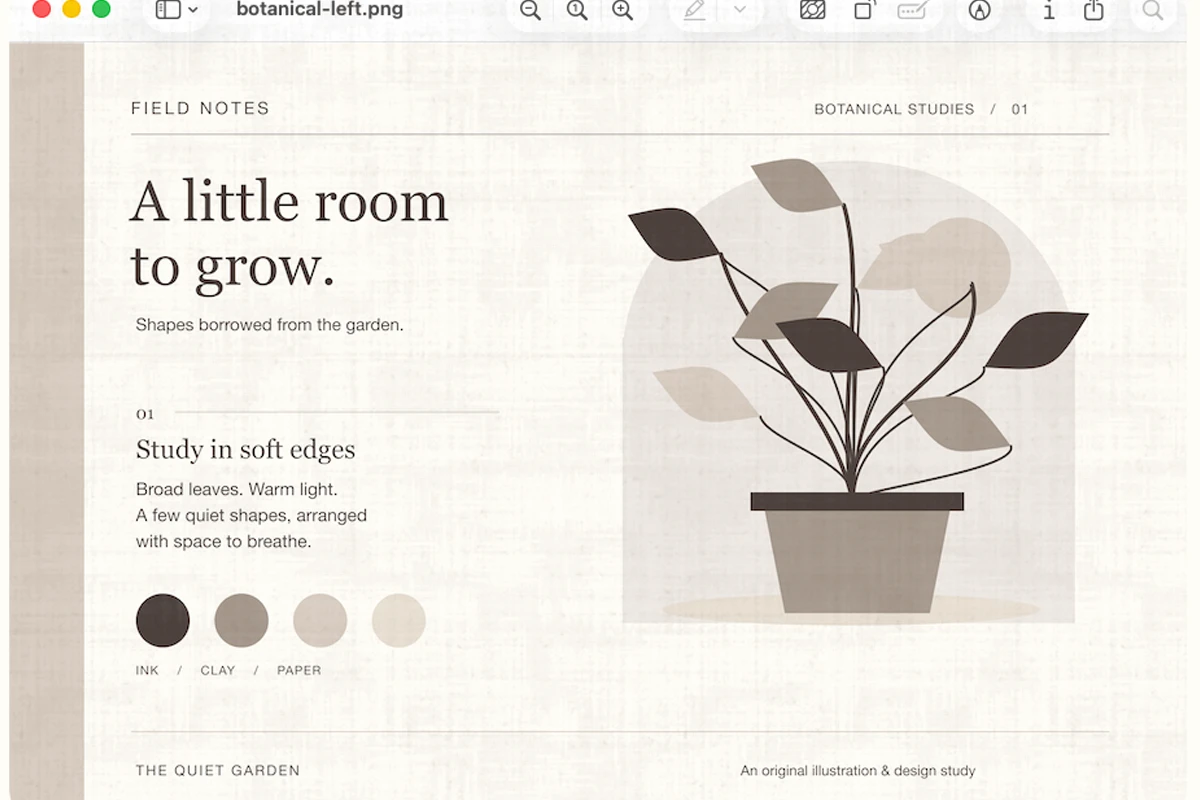
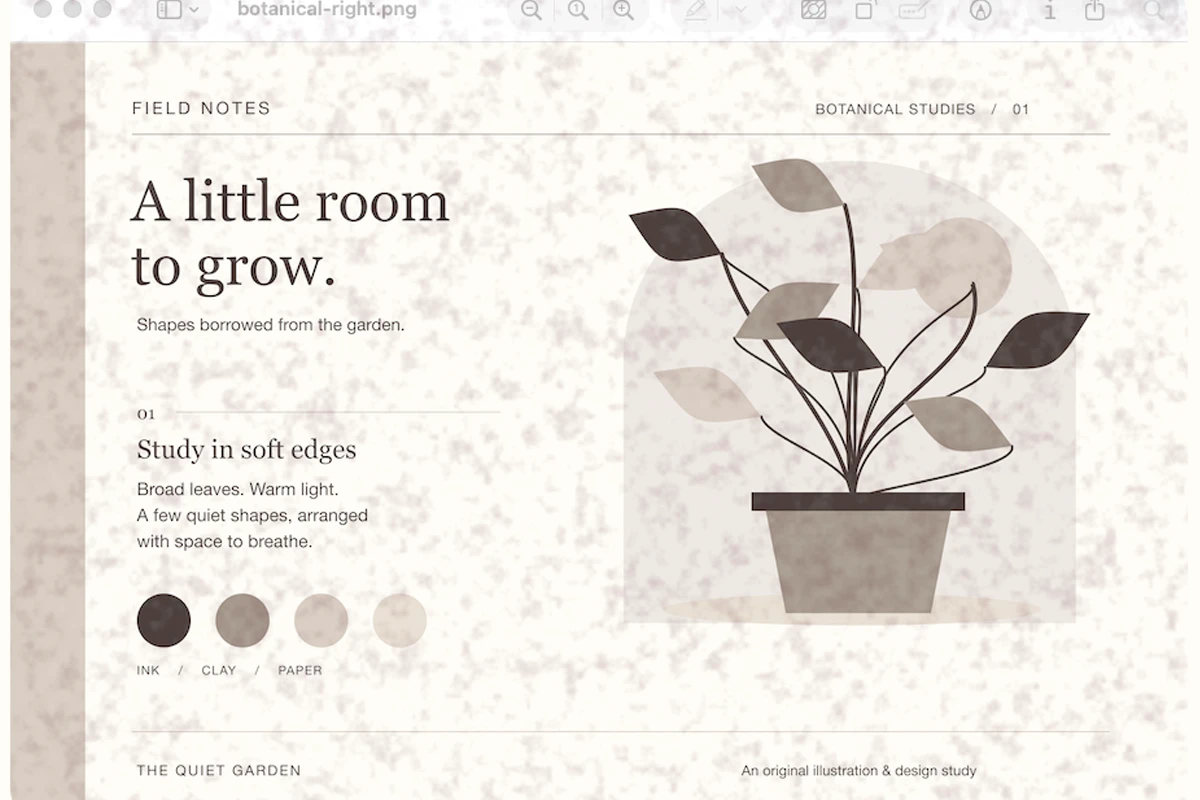
Find your texture.
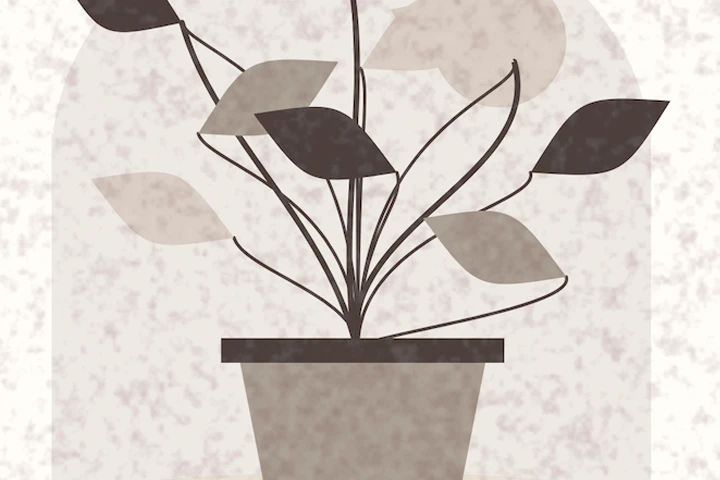
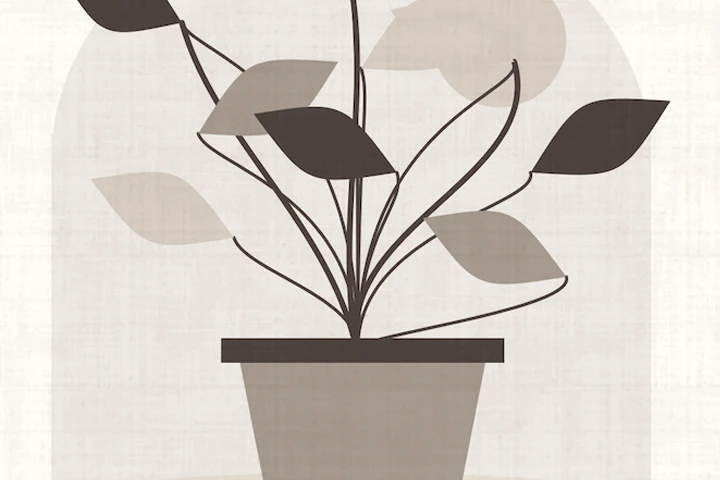
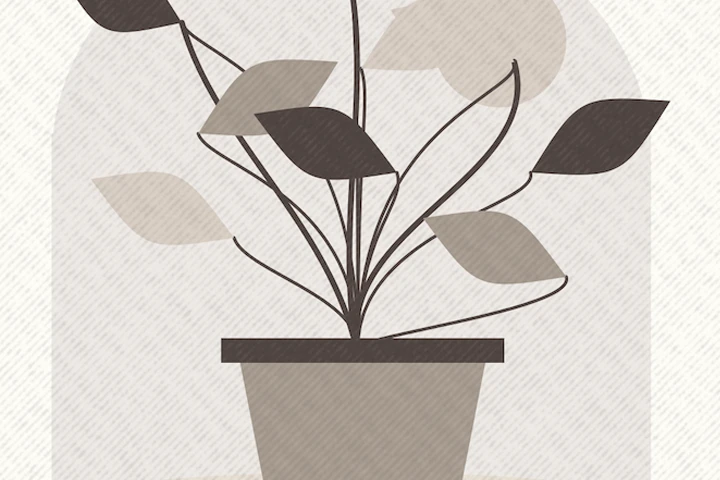
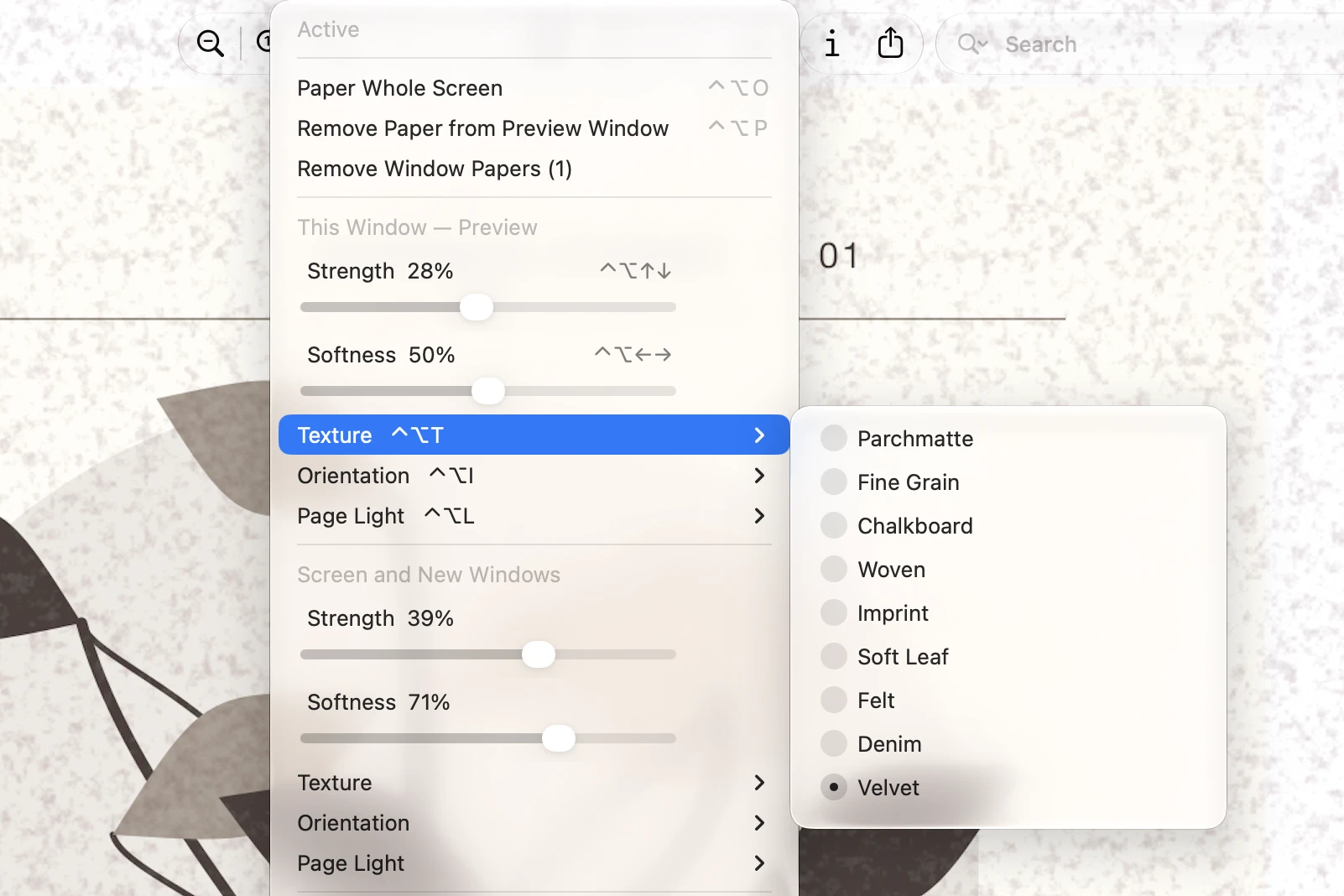
Choose from nine textures: Parchmatte, Fine Grain, Chalkboard, Woven, Imprint, Soft Leaf, Felt, Denim and Velvet. Velvet adds a fine plush texture in Wine. Adjust strength and softness from the menu bar, with separate settings for a single window or the whole screen.
Shape your light.
Choose from six Page Light colors and three glow styles. Shape the light with Oval, Round, Wide or Tall, then place it in the center, along an edge or in a corner. Adjust Light Strength separately from the paper, or turn Page Light off for texture alone.
Right in your menu bar.
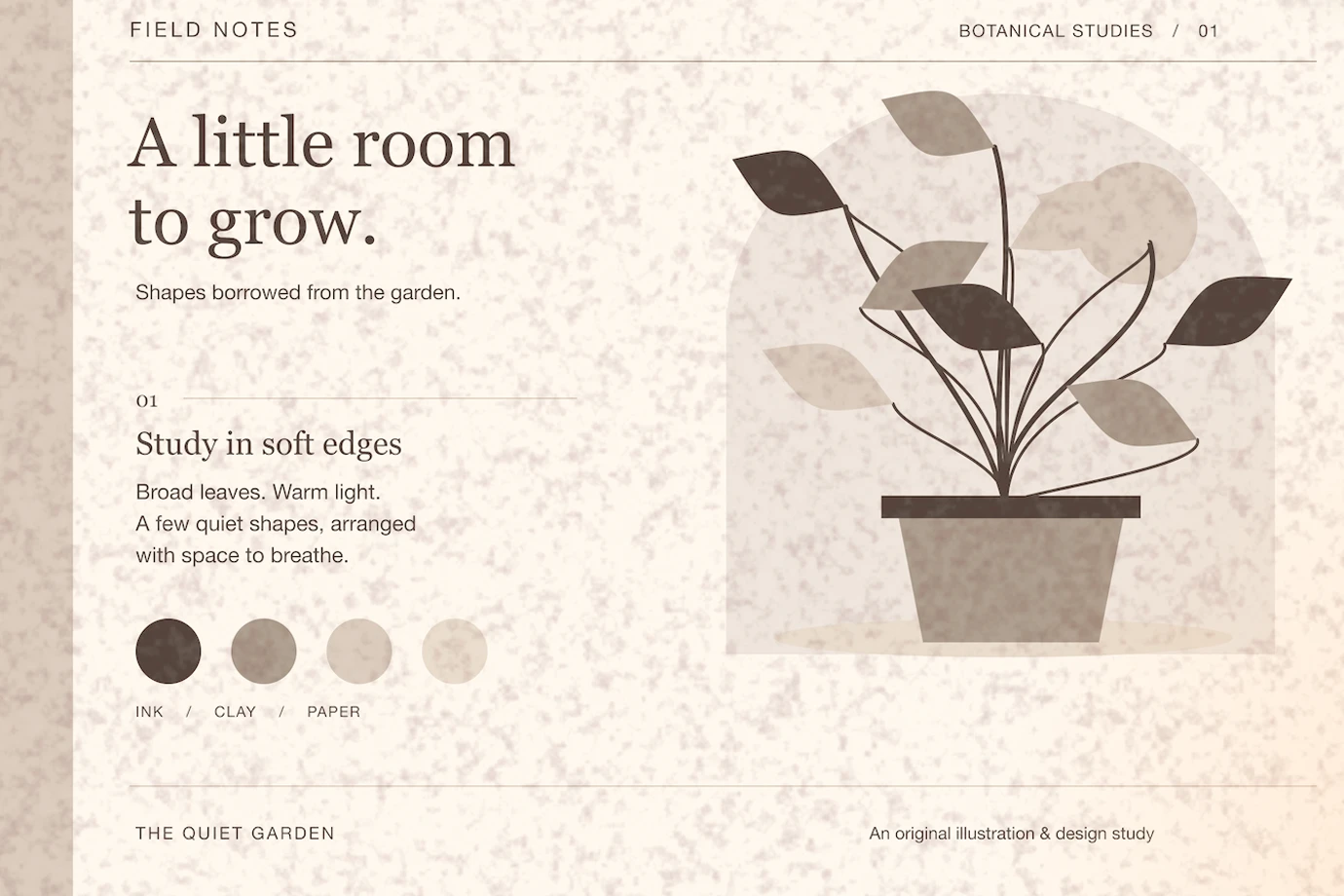
Choose a texture, shape the light and adjust the sliders right from your menu bar. The customization controls stay open as you make changes. Clicks, scrolling and typing pass through to the apps underneath.
Fit your workspace.
- On your schedule
- Use sunrise and sunset or set your own hours. Snooze for a break or pause on battery.
- Choose your displays
- Turn whole-screen paper on for the displays you want to use.
- Choose when to pause
- Exclude an app to pause paper while it is in front.
Compare paper texture and screen tint.
See how paper overlays and color-tint tools differ, and which controls Parchmatte offers. Compare Mac screen tools.
A few practical details
What is new in Parchmatte 1.2.2?
The menu now shows “Paused — screenshot picker” while the screenshot picker is active, so it is clear why the paper is temporarily paused. Version 1.2.1 added four Page Light shapes and nine positions, with centered Oval as the default. Customization controls stay open while you make changes, and turning a window’s paper off and back on restores its style during the current app session.
Can two windows in the same app look different?
Yes. Each window with its own paper can have its own texture and light. Window choices are kept for the current app session; they are not saved as permanent per-app rules.
Does it get in the way?
Clicks, scrolling and typing pass through the overlay. Adjust the paper from your menu bar while you keep using your apps.
Does it appear in screenshots?
By default, Parchmatte asks macOS to leave the overlay out of screenshots. Some capture tools may still include it.
What can Parchmatte see?
Parchmatte reads window positions and sizes to place its overlays. It does not read window contents, window titles or your typing, collect personal data, or make network connections.
Where can I get Parchmatte?
Parchmatte is available on the Mac App Store. The US price is $2.99; regional prices vary. Requires macOS 13 or later.
What are the keyboard shortcuts?
| Keys | Action |
|---|---|
| ⌃⌥O | Paper the whole screen |
| ⌃⌥P | Paper the front window (again to remove) |
| ⌃⌥↑ / ⌃⌥↓ | Stronger or lighter |
| ⌃⌥← / ⌃⌥→ | Less or more softness |
| ⌃⌥T | Next texture |
| ⌃⌥I | Flip the grain’s direction |
| ⌃⌥⇧↑ / ⌃⌥⇧↓ | Stronger or softer Page Light |
| ⌃⌥L | Next Page Light tint |
| ⌃⌥G | Next glow level |
| ⌃⌥S | Snooze for 15 minutes, or resume |
When the front window has its own paper, the arrow, texture, Page Light, glow and light strength keys adjust that window. Otherwise, they adjust the whole screen and new windows.
Read the privacy policy or contact support.
Make your screen feel more like your page.
US $2.99 on the Mac App Store. Regional prices vary. Requires macOS 13 or later.